INHALTSVERZEICHNIS
Introduction
In Starhunter, you have the option to link parent and subsidiary companies within the company data, allowing you to see their affiliation at a glance. A brief explanation can be found directly in the [video tutorial for subsidiaries].
Procedure
- Open the respective company.
- Parent and subsidiary companies can be found under the "Company Data" category (both fields function in the same way).
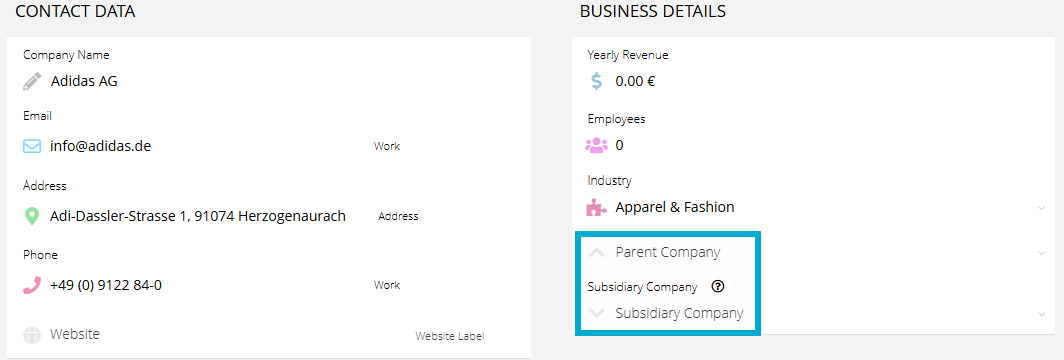
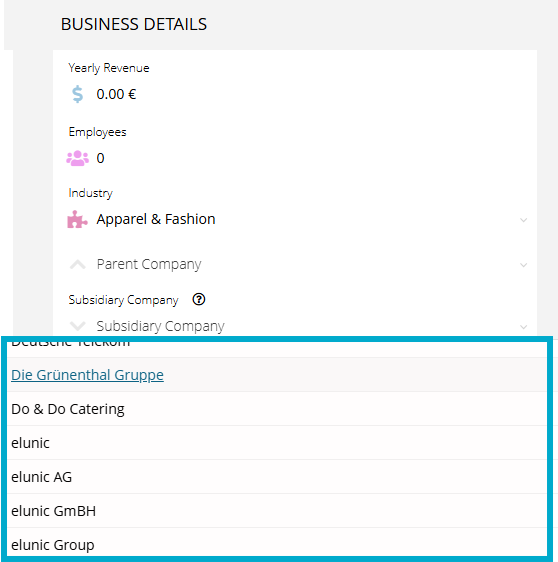
- Clicking on the respective field opens a drop-down selection of all companies available in the system.
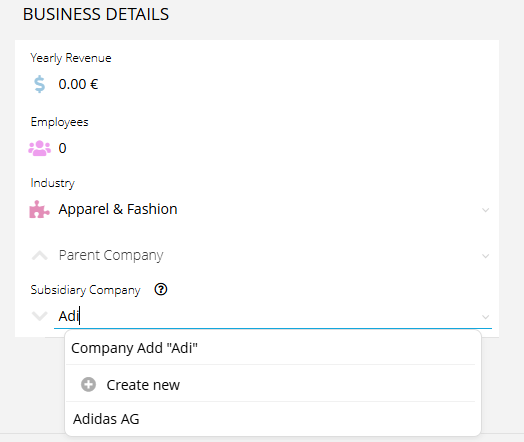
- The list of results in the drop-down menu narrows as you type, refining the selection based on the entered details.
Displaying Columns in the Overview
In the company and customer overview, you can enable a column to directly display all subsidiaries associated with a company.
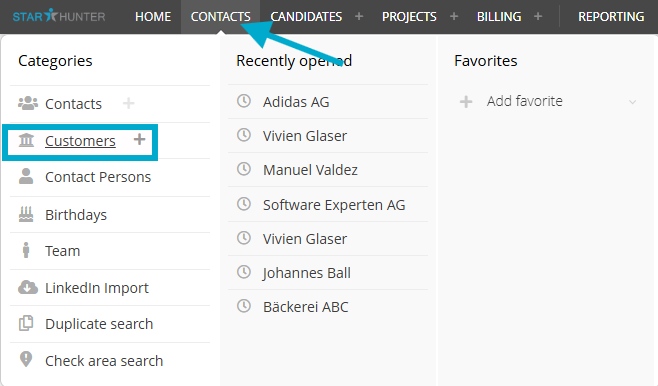
- Hover over “Contacts” > “Customers”.
- Hover over any column and click on “Show column options”.

- Add/remove columns and enable “Subsidiaries” (the same applies to Parent Companies).
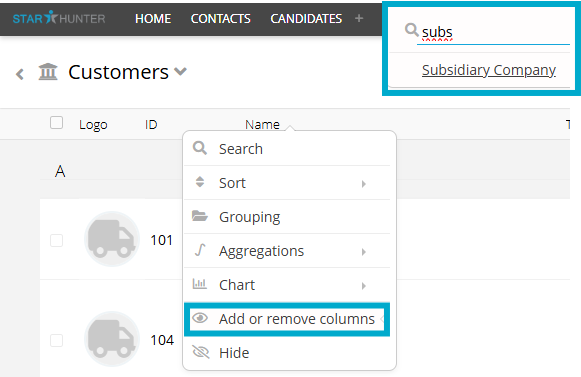
- Drag and drop the column to the desired position.
- Save the view.
Saving the View
- Click on the magnifying glass icon.

- Save the view and assign a custom name.
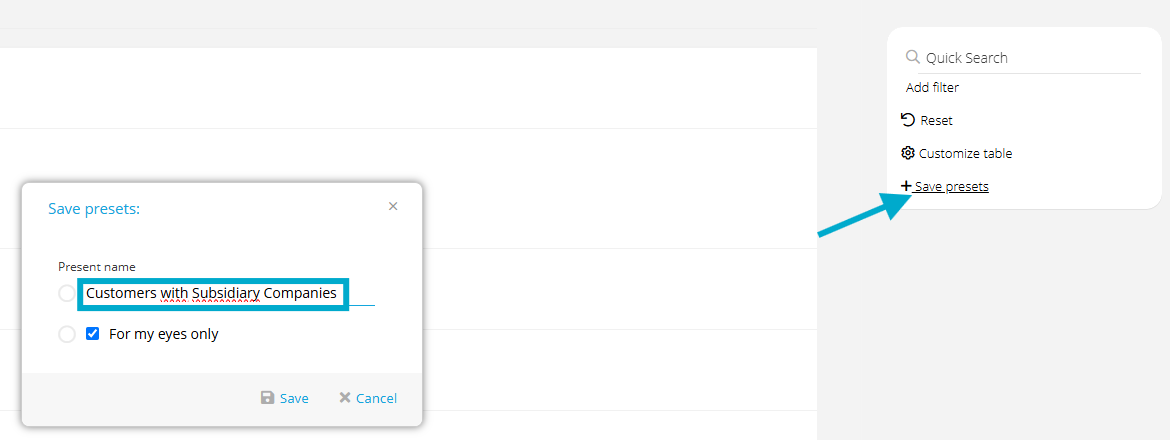
- Select the “Private” checkbox to make the view available only to yourself in the drop-down menu.
- Uncheck the box if you want to make the view visible to all colleagues.
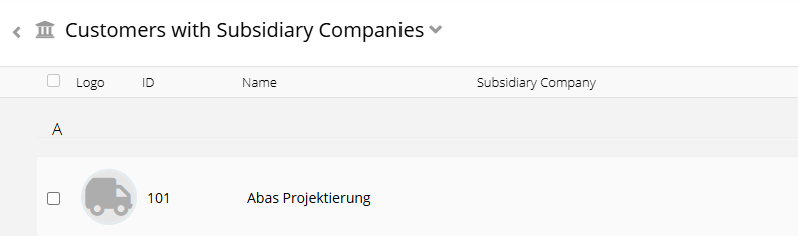
- After saving, reload the page once—the view will then be available in the drop-down menu.
Was this article helpful?
That’s Great!
Thank you for your feedback
Sorry! We couldn't be helpful
Thank you for your feedback
Feedback sent
We appreciate your effort and will try to fix the article