Please clickhere to open the article in a new window.
INHALTSVERZEICHNIS
- General Information
- How the File-Manager works
- Categorizing Files Using Tags
- Generating the Link for the File Manager
- File-Manager
- Header Information
General Information
The File Manager allows your candidates to manage documents such as resumes, certificates, and references online. Candidates receive a unique link granting access to an overview of all external documents. They can upload new files or delete existing ones.
Files can be tagged for categorization. After each upload, the candidate’s consultant is notified that a new file has been added. Additionally, you can provide candidates with downloadable documents from Starhunter, such as contracts or forms that need to be completed during the application process.
How the File-Manager works
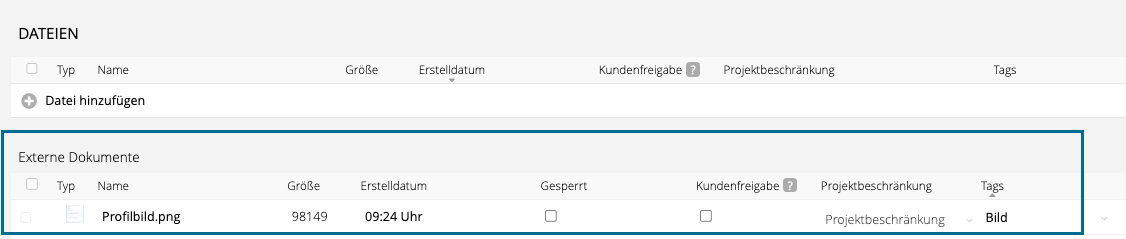
The File Manager synchronizes with the “External Documents” table in Starhunter, allowing two-way updates between the system and the candidate’s view. This allows you to conveniently store documents in Starhunter that the candidate needs to fill out or sign during the application process, without having to send them manually.
The candidate can then download, complete, and re-upload the documents directly in the File Manager. Conversely, all files uploaded by the candidate through the File Manager are automatically saved in the “External Documents” section.
Files placed in this table become available for the candidate to download once the File Manager link is shared. Candidates can download, complete, and re-upload documents, which are then automatically stored in the “External Documents” section.
 Important:
Files not intended for candidate access should be stored in the general “Files” table above.
Categorizing Files Using Tags
All files you manage within Starhunter can optionally be categorized manually using tags. By clicking into the “Tags” column, a dropdown menu will appear, showing you an overview of all existing tags.
If the desired tag does not yet exist, simply type it into the field and select “create and apply” to add the tag. This will categorize the file internally for your use.

Defining Available Tags for Candidates
In the File Manager, candidates also have the option to categorize their files. To prevent them from creating arbitrary tags, you can define which tags are available for selection in the File Manager.
This configuration can be made under Settings > External Views > File Manager. 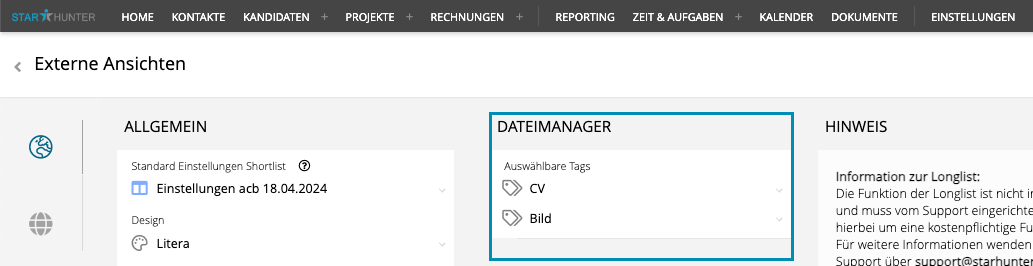 Under “Selectable Tags”, you specify which file categories the candidate can choose from when uploading a file.
Important:
New tags can only be created within the candidate’s own file table. If a specific tag is not available in the selection, please ensure that it has first been created in the candidate’s file table.
Generating the Link for the File Manager
Within the candidate profile, you can generate the link for the online file management by hovering over the action menu and clicking on File Manager.
The File Manager is available in both German and English.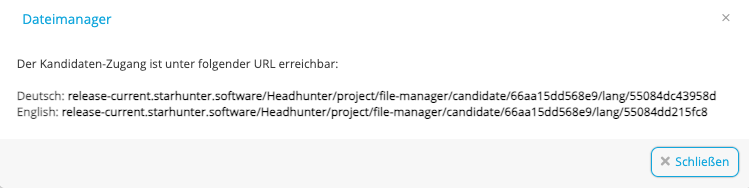
Sending the Link for the File Manager
The previously generated link can be manually sent to an individual candidate via email using copy & paste. To do this, first open the email dialog window using the corresponding button, then manually paste the link into the message.
Sending via Email Template to Multiple Candidates
If you want to send the respective File Manager link to multiple candidates at once, we recommend creating an email template via Settings > Templates > Email Templates > Add Email Template
In this template, you can define the candidate salutation using placeholders and insert the placeholder for the automatic generation of the File Manager link: %candidate.file-manager-link%
When the email is sent, the link is generated automatically and does not need to be inserted manually via copy & paste.
Example:
Within a project, you’ve identified two new candidates and want to request their updated documents. In the candidate table, select the desired candidates using the checkboxes, then choose Email to Candidate from the action menu.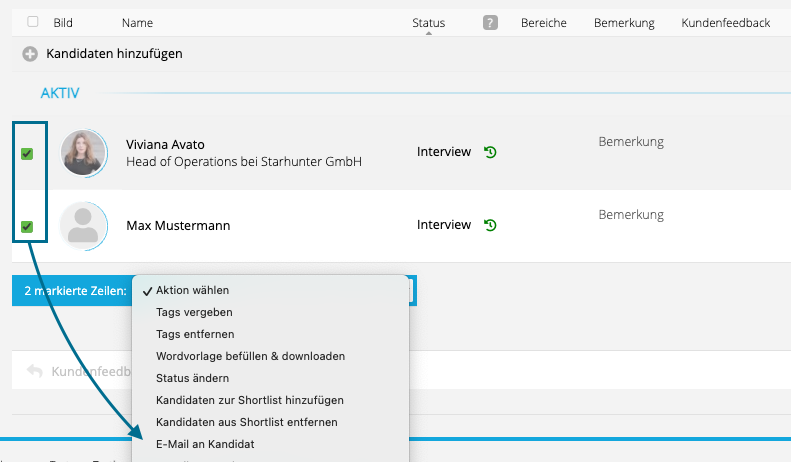
The email dialog window will then open, allowing you to select your custom email template.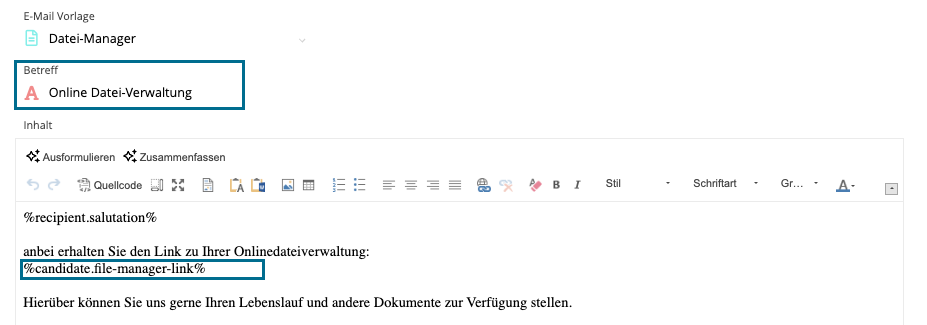 The content of the email can, of course, be customized—along with the subject line and the internal name of the email template. However, it’s important that the placeholder for the File Manager is correctly inserted into the template.
Once everything is set, you can send the email. As usual, the signature from the selected mailbox will be automatically appended to the email template.
File-Manager
Header Information
The information displayed in the header of the File Manager is pulled from various sources within the system.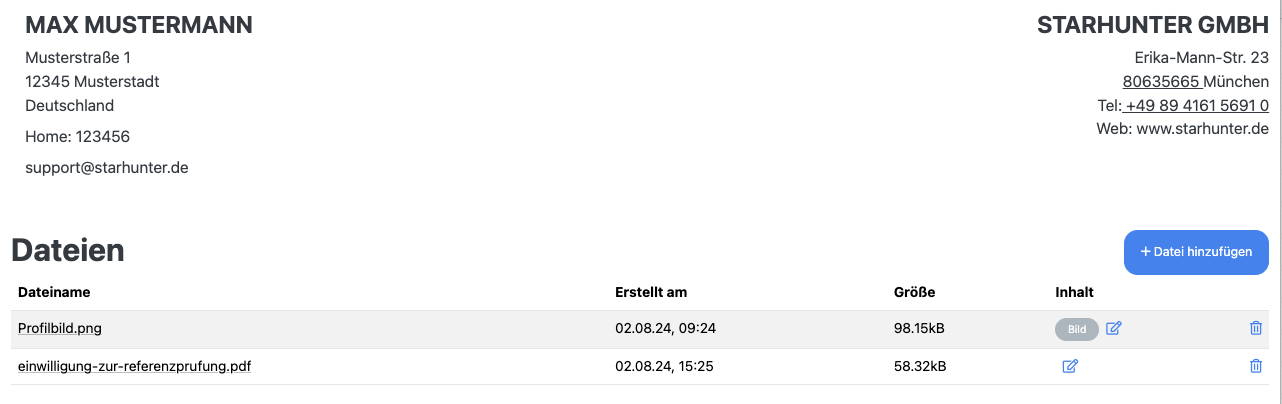
Candidate Data
On the left side, below the candidate’s name, their contact details are listed. The top entry is used for the address, while all phone numbers and email addresses stored in the system are displayed along with their associated labels.
Company Information
On the right side, your contact details are listed below your company information. All data is pulled from Starhunter under Settings > Master Data. These are the same details that appear on the shortlist. For further guidance, refer to the article Shortlist & Longlist – Adjusting Company Data/Logo.
Managing Files
Uploading Files
Candidates can upload documents using the + Add File button.
The candidate can then select the file, which will display the corresponding filename on the right side. In the final step, the candidate has the option to specify the file’s content using the associated checkbox before uploading it.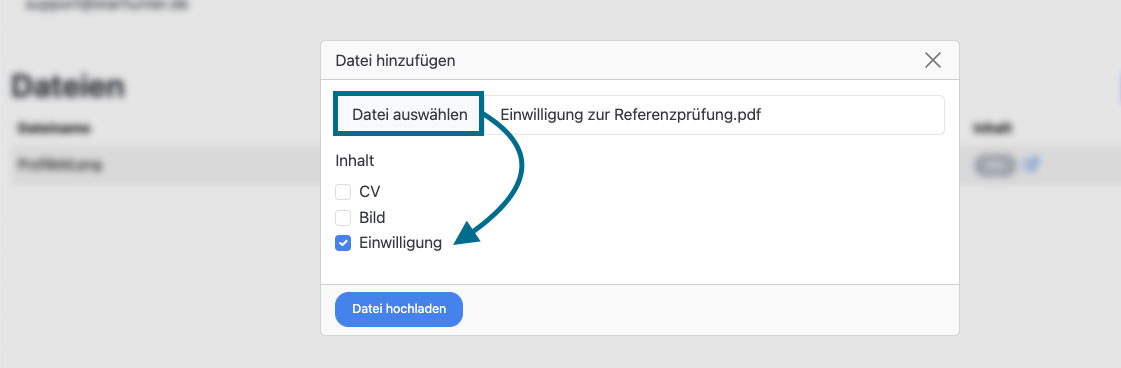
After the upload, the File Manager table is updated to include the newly uploaded file.
In addition, the file is stored in Starhunter under External Documents within the corresponding candidate’s profile.
Automatic Notification After File Upload
The candidate’s consultant is automatically notified when new files are uploaded. This requires that a consultant has been assigned to the respective candidate.
Deleting Files
If the candidate accidentally selects the wrong file for upload, they can remove it at any time by clicking the delete icon next to the file.
Locking files
After the file has been uploaded and reviewed, you have the option to lock the uploaded file. To do this, simply select the corresponding checkbox in the “Locked” column of the file table and save. The candidate will then receive visual feedback in the File Manager—displayed as a green checkmark next to the file—indicating that the document has been reviewed and approved.

Important:
Once a file has been locked, it can no longer be deleted by the candidate.
Was this article helpful?
That’s Great!
Thank you for your feedback
Sorry! We couldn't be helpful
Thank you for your feedback
Feedback sent
We appreciate your effort and will try to fix the article