Overview
With the Starhunter n8n Node, you can automate your recruiting processes and seamlessly integrate Starhunter into your workflows. This guide will walk you through the setup step by step.
Prerequisites
- Access to an n8n installation (Cloud or Self-Hosted)
- Access to a Starhunter instance
- Administrator rights in Starhunter (for token creation)
Step 1: Find the Starhunter Node in n8n
The Starhunter Node is available as an official n8n node but needs to be installed once.
How to install the node:
- Open n8n in your browser
- Navigate to any workflow (or create a new one)
- Click on the plus symbol (+) to add a new node
- Enter "Starhunter" in the search bar
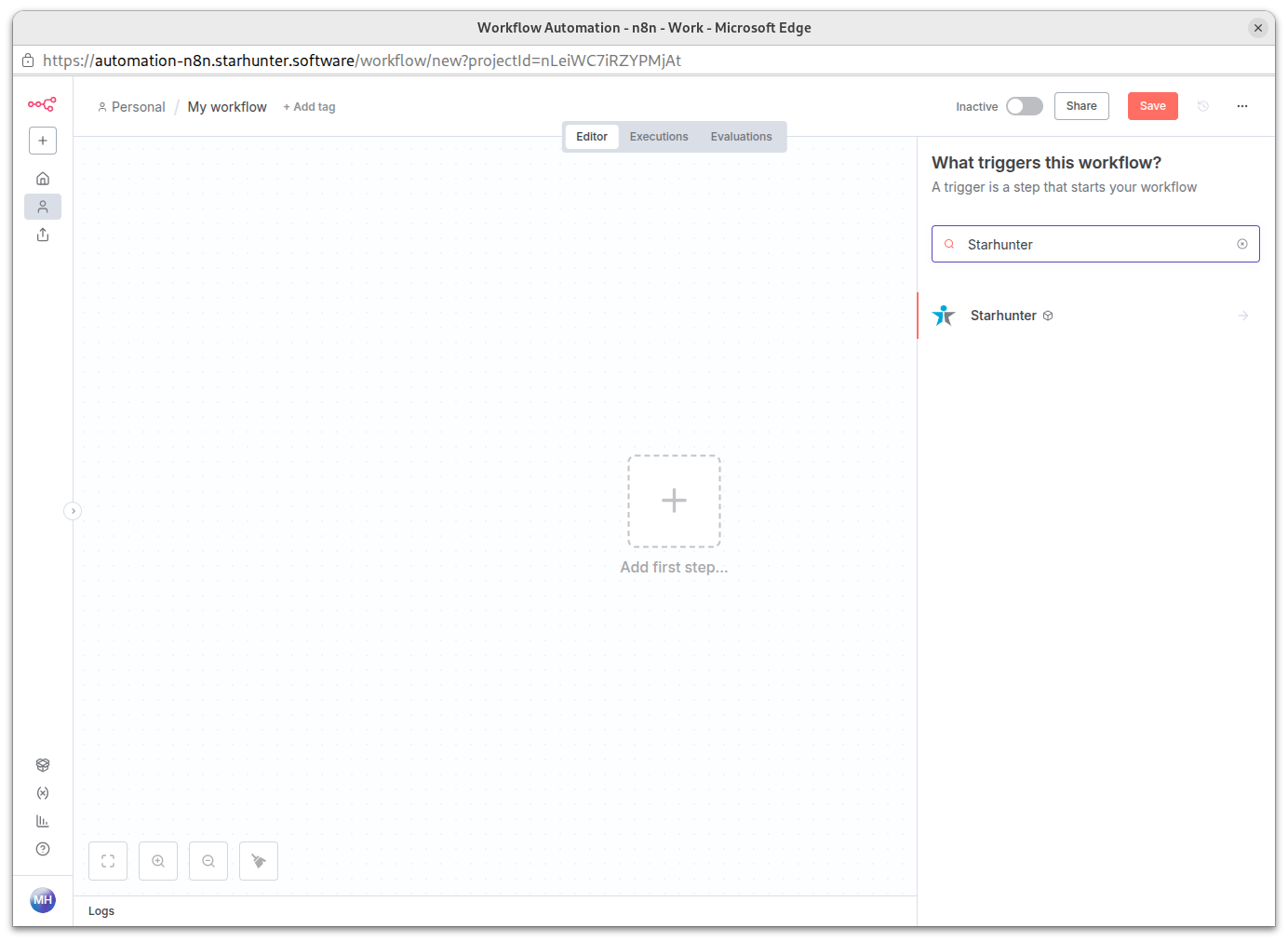
- If the node is not installed yet, click on "Install"
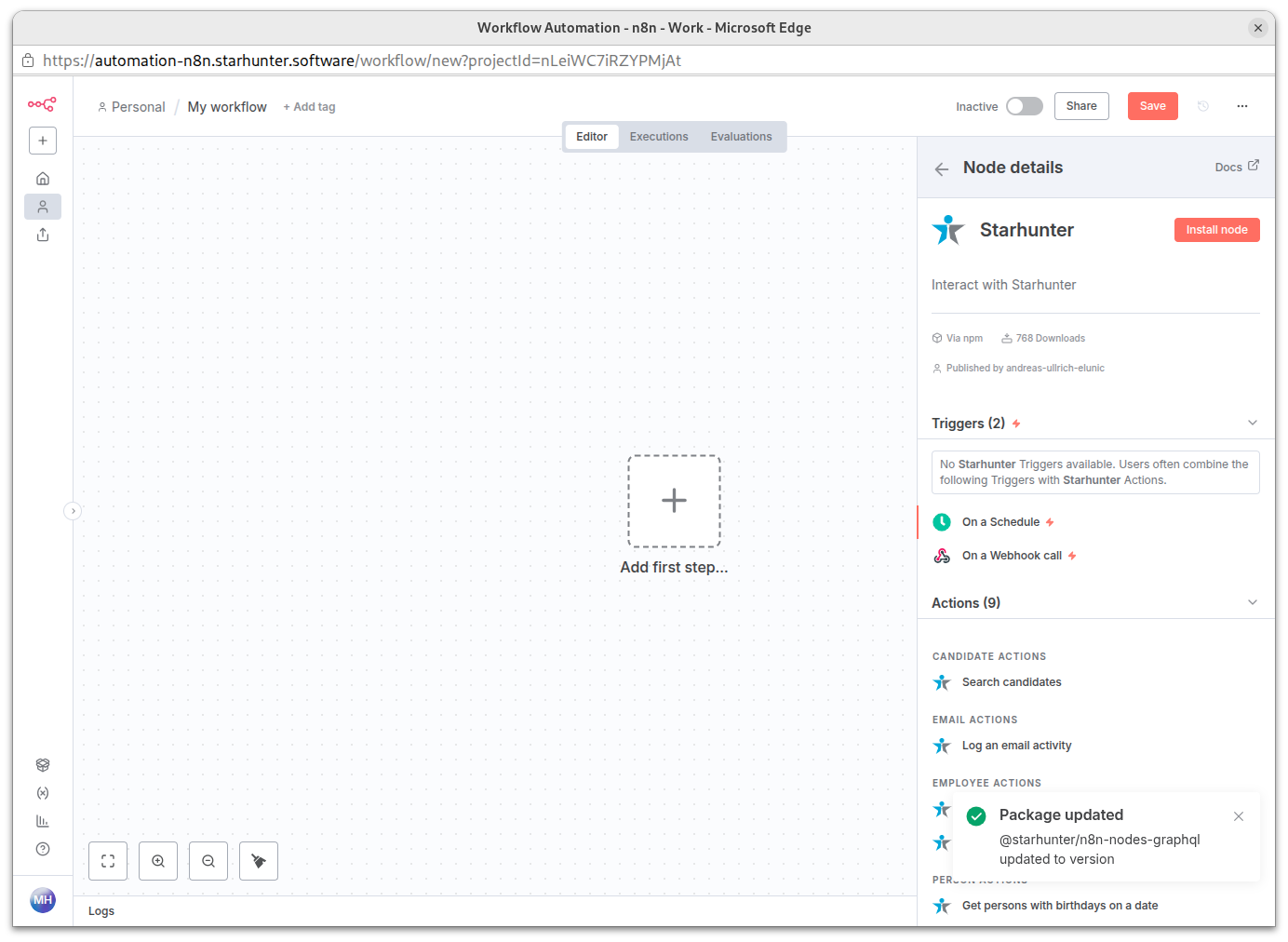
- Wait briefly until the installation is complete
? Tip: After installation, the Starhunter Node is available in all your workflows.
Step 2: Create API Token in Starhunter
To connect n8n with Starhunter, you need an API token. This token authenticates n8n to Starhunter.
How to create an API token:
- Log in to your Starhunter instance
- Click on your profile picture in the top right corner
- Select "Settings" from the dropdown menu
- Navigate to "Login" → "API Tokens"
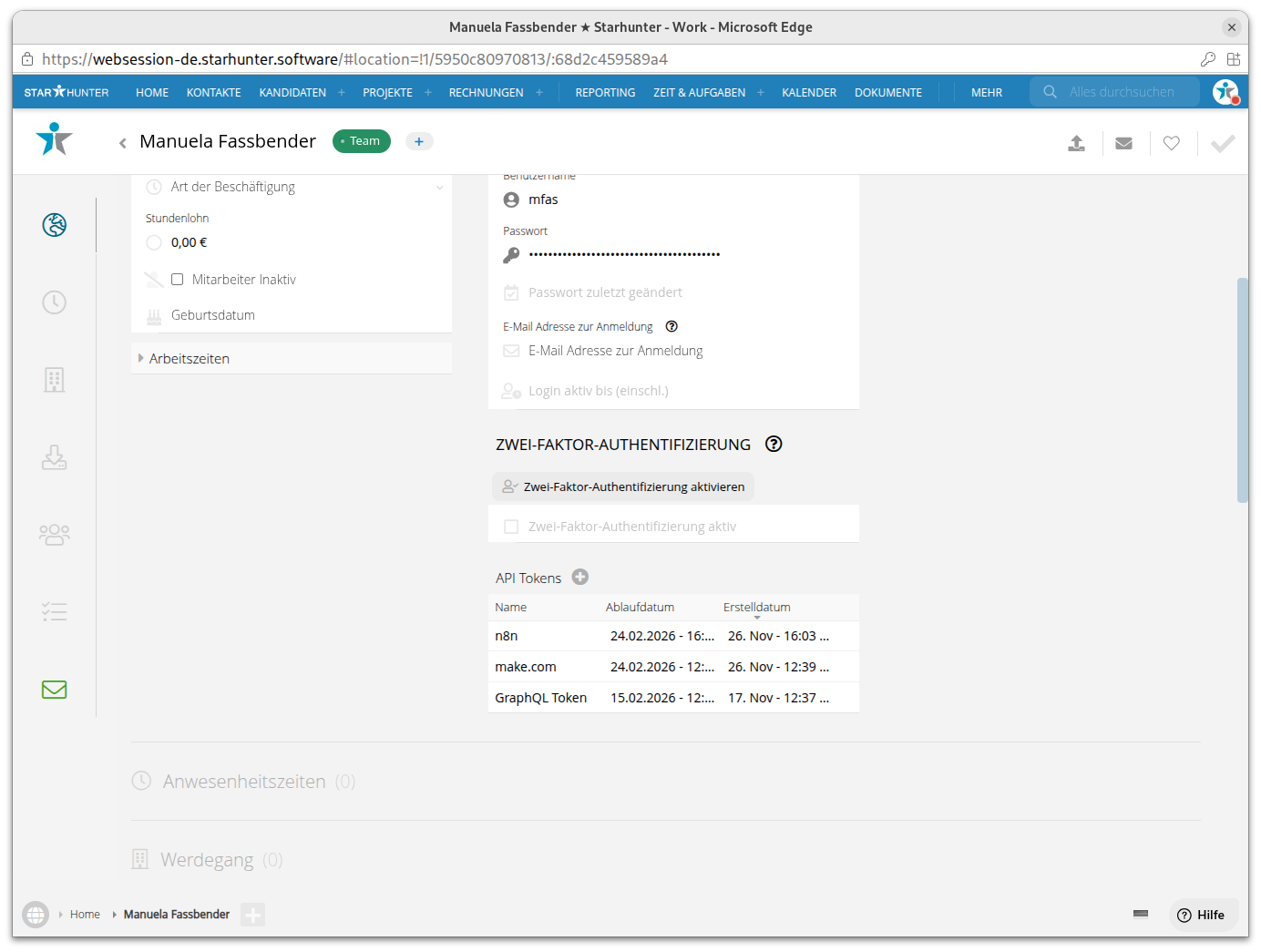
- Click on + to create a new API token
- Give the token a meaningful name, e.g. "n8n Integration" and an expiration date (recommended: 1 year or longer for production use)
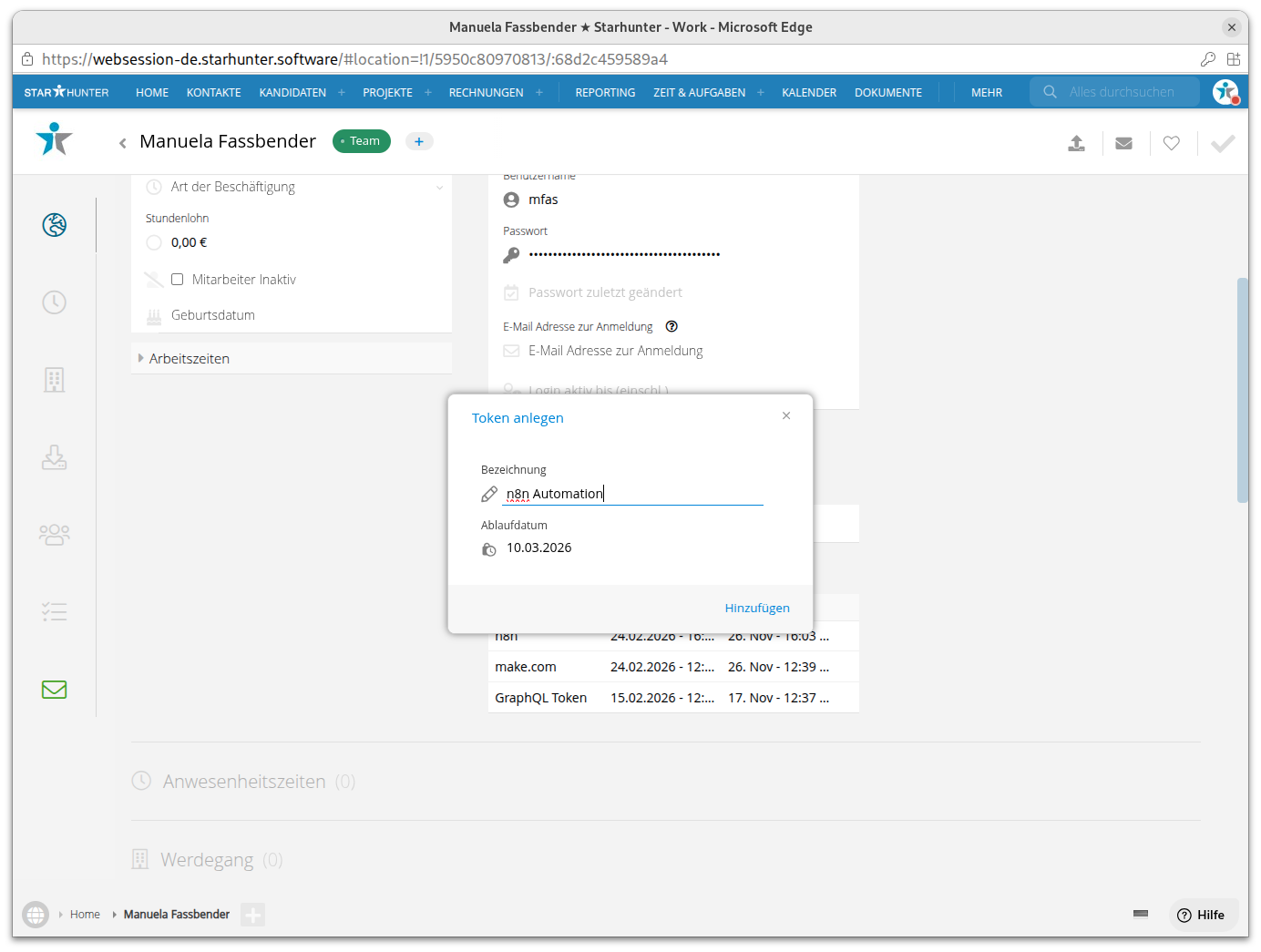
- Click on Add
- Copy the generated API token and store it securely
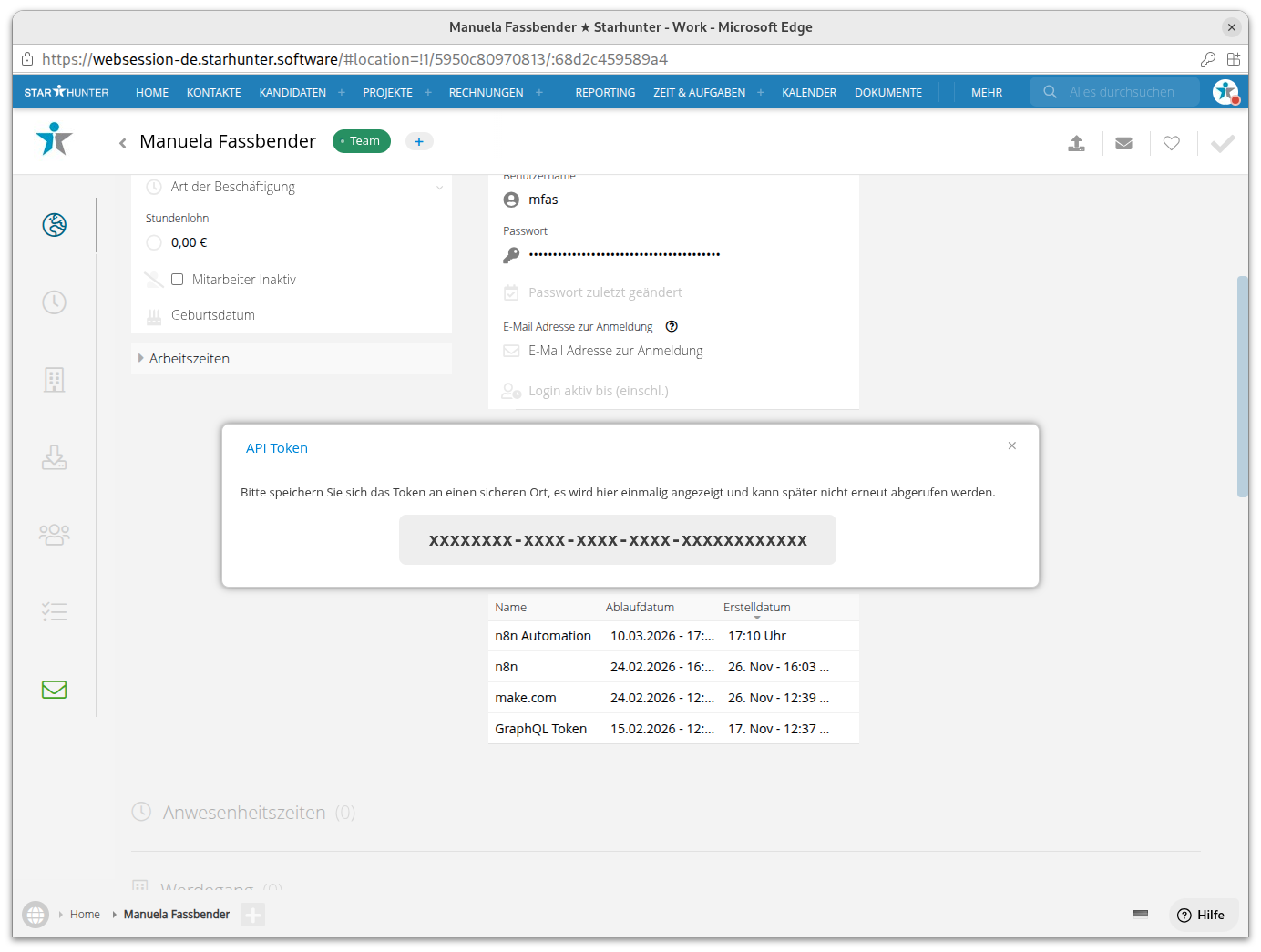
⚠️ Important Security Notes:
- The token is only displayed ONCE! Copy it immediately and store it securely.
- Treat the token like a password - don't share it with unauthorized persons
- If you lose the token, you must create a new one
- Delete old, unused tokens regularly
Tip: Temporarily save the token in a password manager or secure note app until you've entered it in n8n.
Step 3: Configure Credentials in n8n
Now connect n8n with Starhunter by storing the API credentials.
How to configure the credentials:
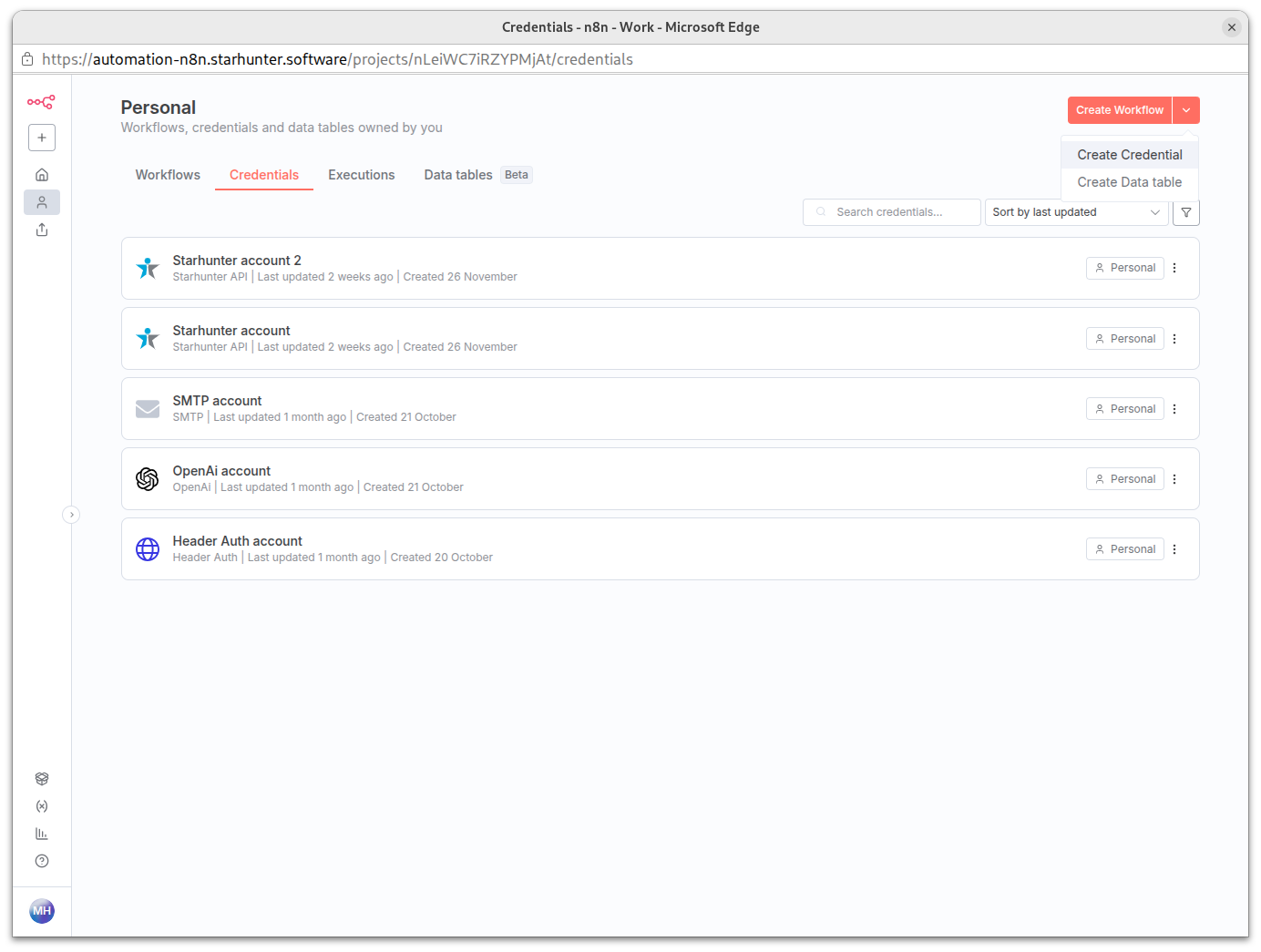
- Go to a workflow in n8n and add a Starhunter Node
- Click on the "Credential to connect with" field in the node
- Select "Create New Credential"
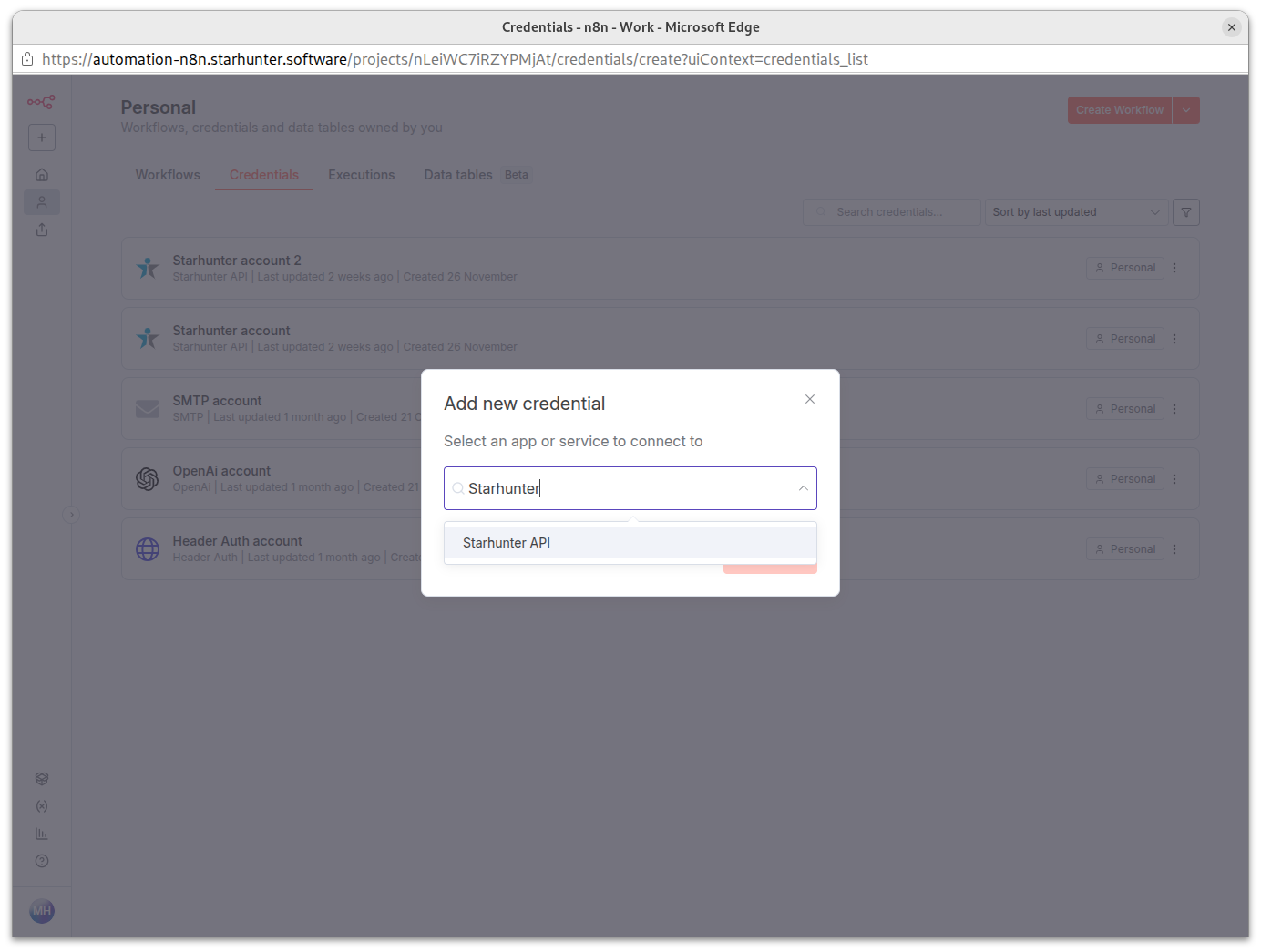
- Search for "Starhunter" and select Starhunter API
- Fill in the fields:
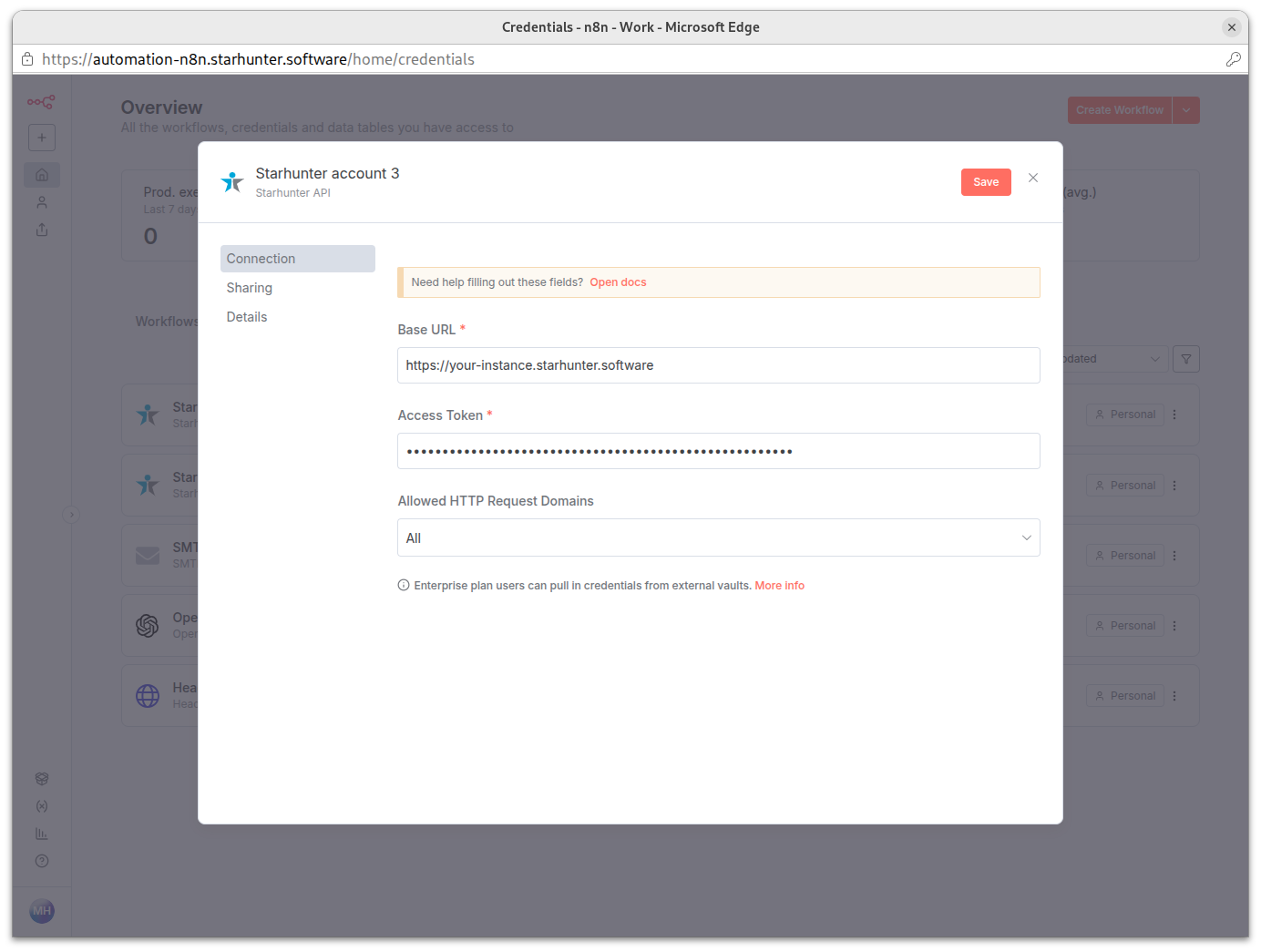
- Name: Enter a name (e.g. "Starhunter Production")
- Base URL: The URL of your Starhunter instance
- Format:
https://your-company.starhunter.software - ⚠️ Important: WITHOUT trailing slash (/)
- Format:
- Access Token: The API token created in Step 2 (simply paste it)
- Click on "Save"
- n8n automatically tests the connection
✅ Successful Connection
If everything is correct, you'll see a success message like "Connection successful" or a green checkmark.
Step 4: Create Your First Workflow
Now you can use the Starhunter Node!
Example: Get Today's Birthdays
- Add a Starhunter Node to your workflow
- Select your created credentials
- Configure the node:
- Resource: Person
- Operation: Get Birthdays
- Use Today: On (enabled)
- Click on "Execute Node" to test
If there are people with birthdays today, you'll see them in the output.
Troubleshooting - Common Issues
❌ "Connection failed" or "Authentication error"
Possible causes:
- The API token is incorrect or expired
- The Base URL is incorrectly formatted (e.g. with trailing /)
- You don't have permission in Starhunter
Solutions:
- Check if the Base URL is correct (without / at the end)
- Create a new API token in Starhunter
- Verify that your Starhunter user has sufficient permissions
❌ "Node not found" or Starhunter Node doesn't appear
Solution:
- Install the node as described in Step 1
- Refresh the page (F5) after installation
- For Self-Hosted n8n: Restart the instance
❌ "Invalid URL" Error
Solution:
- Base URL must start with
https:// - Base URL must NOT end with
/ - Correct:
https://company.starhunter.software - Wrong:
https://company.starhunter.software/
❌ Token no longer works
Solution:
- Check the token's expiration date in Starhunter
- Create a new token if needed
- Update the credentials in n8n
Next Steps
After successful setup:
- Read the Overview of all available actions
- Try out different operations
- Create your first automation workflow
Need Help?
Was this article helpful?
That’s Great!
Thank you for your feedback
Sorry! We couldn't be helpful
Thank you for your feedback
Feedback sent
We appreciate your effort and will try to fix the article