Starhunter GPT – Everything About Our AI Tool
Starhunter GPT is our own AI tool that provides you with many additional ways to use Starhunter. At this point, we have already integrated many interesting additional functions, which we continuously expand. You will automatically be informed about new features through our newsletter, and you can find the latest features within the dashboard under "Product Update" in the Support tile.
INHALTSVERZEICHNIS
- Starhunter GPT: CV Parsing
- Starhunter GPT: Job Advertisements, Wording & Summary
- Starhunter GPT: Rewording Texts & Setting the AI Tone
- Starhunter GPT: Extracting Contact Information from Emails
Starhunter GPT: CV Parsing
Starhunter GPT: CV Parsing To import new candidates into Starhunter, you have the option, in addition to the LinkedIn Import and manual entry, to have resumes read by the software and integrate the data into Starhunter. To use CV parsing, click on the "+" in the upper menu bar next to "Candidate".
- Candidates+

- Select "Import profile from resume"

- Select a file or add it via "Drag & Drop" to automatically extract the profile
Important Notes:
Currently, the AI can only read Word documents and PDF files created from them (the PDF file must contain a text document). We are continuously working on the ability to read image files, which the AI is not yet fully trained for.
Please wait until the extraction process is complete and do not navigate to other pages in Starhunter, as this may cause interruptions and incomplete parsing processes.
Parsing can take up to 60 seconds depending on file size and quantity.
Once the parsing process is complete, the corresponding candidate profile opens, and you can edit it as usual.
Starhunter GPT: Job Advertisements, Wording & Summary
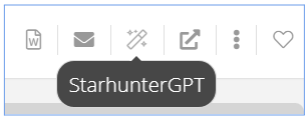
1.) Open the desired Starhunter project and look for the new magic wand icon in the top right corner. Clicking on it will open a chat window.
2.) First, it is important that you accept the terms and conditions. This is required only once. 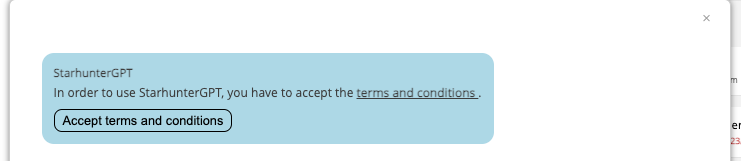
Note:
Please note that you are responsible for the information you enter. The project title and the details entered in the "Skills" fields are used for the automated creation of the job advertisement. Ensure that all relevant skills and qualifications are listed there.
3.) You now have the option to choose whether the advertisement should be formulated in a formal (you) or informal (du) style. Once you have made your choice, you can close the window via the selection in the bottom right. Alternatively, you can leave the window open until the generation is complete.
4.) After the job advertisement has been successfully generated, you have the option to include it in the exposé or copy it to the clipboard. If the result does not meet your expectations, you can generate a new version at any time.
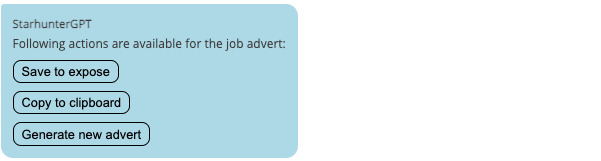
To use the generated job advertisement in the job portal (if you have already purchased this feature), you can save it in the clipboard, switch to the job portal settings, and paste it there. More information about the job portal settings can be found here in the corresponding knowledge article of the job portal.
Starhunter GPT: Rewording Texts & Setting the AI Tone
For the text rewording function, the Starhunter GPT AI has been completely revamped, and it is now possible to assign a tone to the AI to make texts more personal or better suited to your preferences. In all areas of Starhunter where you can enter free text and the magic wand icon appers, an additional option "Rephrase" appears, when you click on the icon, e.g. a candidate’s description.
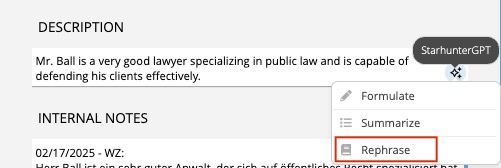
With this setting, you can define a global tone for the AI in all these areas and choose from various tones.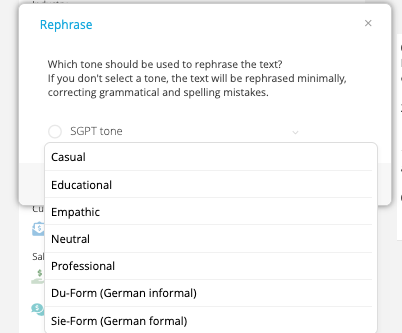
Since this is a context-based setting, the text can be formulated in a different tone each time. Once you have selected a tone, you can view a reworded version of the text and either adopt it or generate a new one.
This function can be found in Starhunter at any location where the text assistant is available, including various text/input boxes, forms, and email dialogues.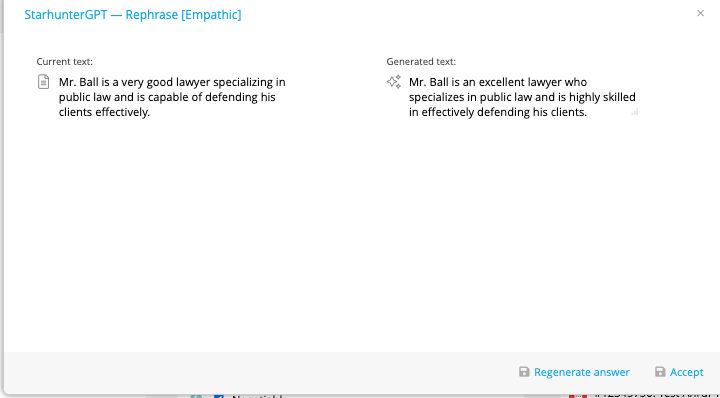
You can find this feature in Starhunter wherever the text assistant is available, including various text/input boxes, forms, and email dialogs.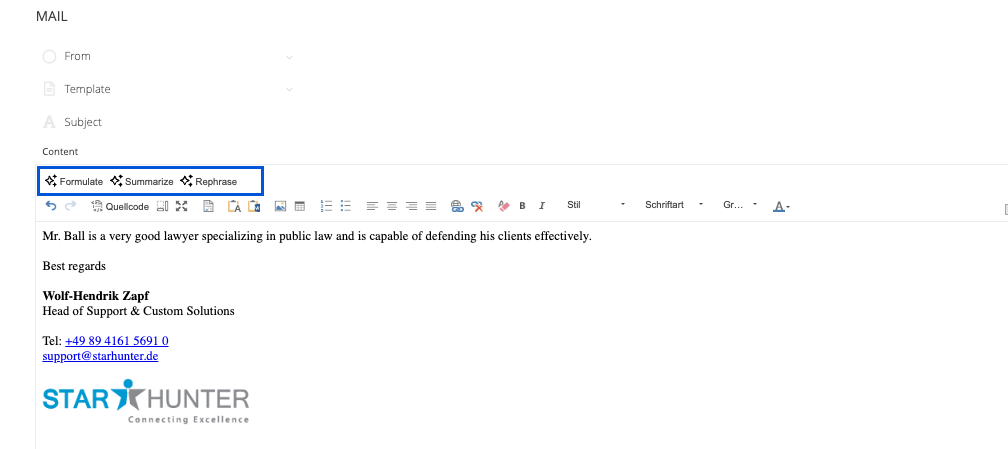
Starhunter GPT: Extracting Contact Information from Emails
With this function, you can extract contact information such as email addresses or phone numbers from emails and add them directly to the respective contact without having to adjust them manually.
To do this, go to a contact and scroll to the activity timeline. There, you will see a small "Starhunter GPT" icon next to emails in the activities.
When you click on it, the email is analyzed. If the AI detects email addresses or phone numbers, they are extracted. Starhunter then suggests adding these contact details to the candidate, contact, or company.
Of course, this feature only works for emails associated with a dataset that can contain email addresses and phone numbers. This means that this function does not work for projects or invoices.
Was this article helpful?
That’s Great!
Thank you for your feedback
Sorry! We couldn't be helpful
Thank you for your feedback
Feedback sent
We appreciate your effort and will try to fix the article