Click here to open the article in a new window.
TABLE OF CONTENTS
- Introduction
- Basic Data
- Default Sales Data
- General Notes
- Regional Settings
- Other Settings
- Default Outgoing Email Server (SMTP)
- Default Outgoing Email Server (SMTP)
Introduction
By maintaining your master data in Starhunter, you contribute significantly to strengthening your corporate identity, as certain content (such as the company name or logo) is displayed on some external links, such as the Shortlist or File Manager.
Basic Data
 Click on Settings in the main menu to navigate to the master data
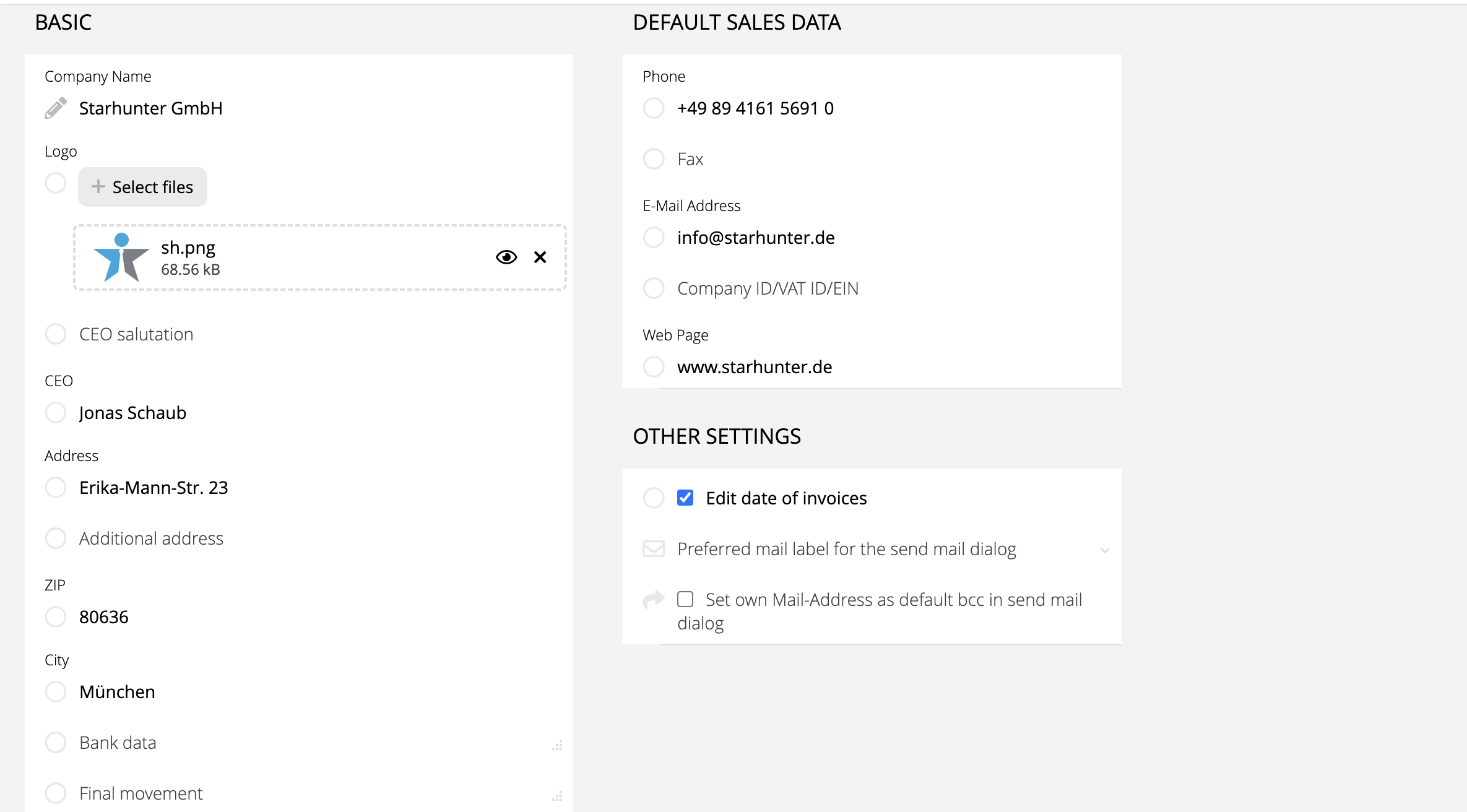 Click on Other Settings to expand this section
- Then, enter the data in the corresponding fields:
- Company Name → Enter your company name
- Logo → Upload your company logo as an image file
- CEO → Enter the managing director’s name
- Address, ZIP, City → Complete the company address
- Bank data → Enter your bank details (optional)
- Final movement → Relevant for the invoice PDF (optional)
Default Sales Data
Fill in the data for the following fields:
- Phone (optional)
- Fax (optional)
- Email Address (optional)
- VAT ID / MWST Number (optional)
General Notes
The logo uploaded, along with company-related data, will be displayed in the following generated links, which you can optionally share with your clients and candidates:
- Shortlist
- File manager
- Recruitment Brief
- Candidate Brief
- Target companies
- Longlist (if booked as Add-on)
Below, you can see an example of the company data displayed in the Shortlist, based on the information stored in the system.
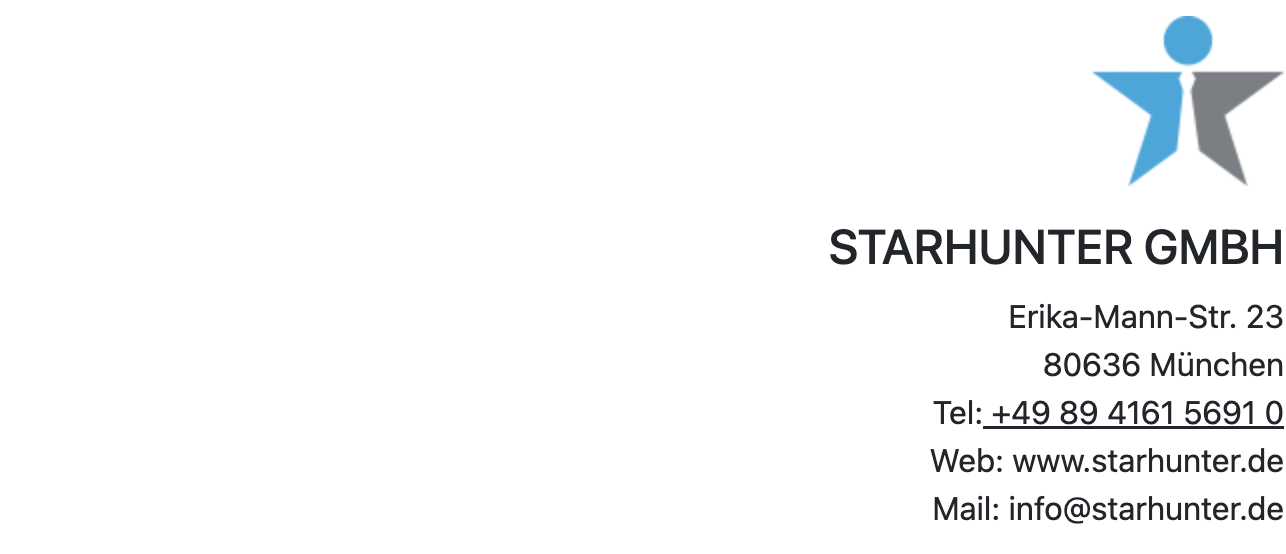
The address information from the master data is automatically used for invoices. Additionally, the Closing Statement can optionally be displayed in the automatically generated invoice PDF.
Regional Settings
In the Regional Settings, you can configure system-wide settings such as the user interface language. These settings apply across the entire Starhunter system and are not user-specific.
If individual users wish to work in English, they can easily switch the system language by clicking on the German flag at the bottom right.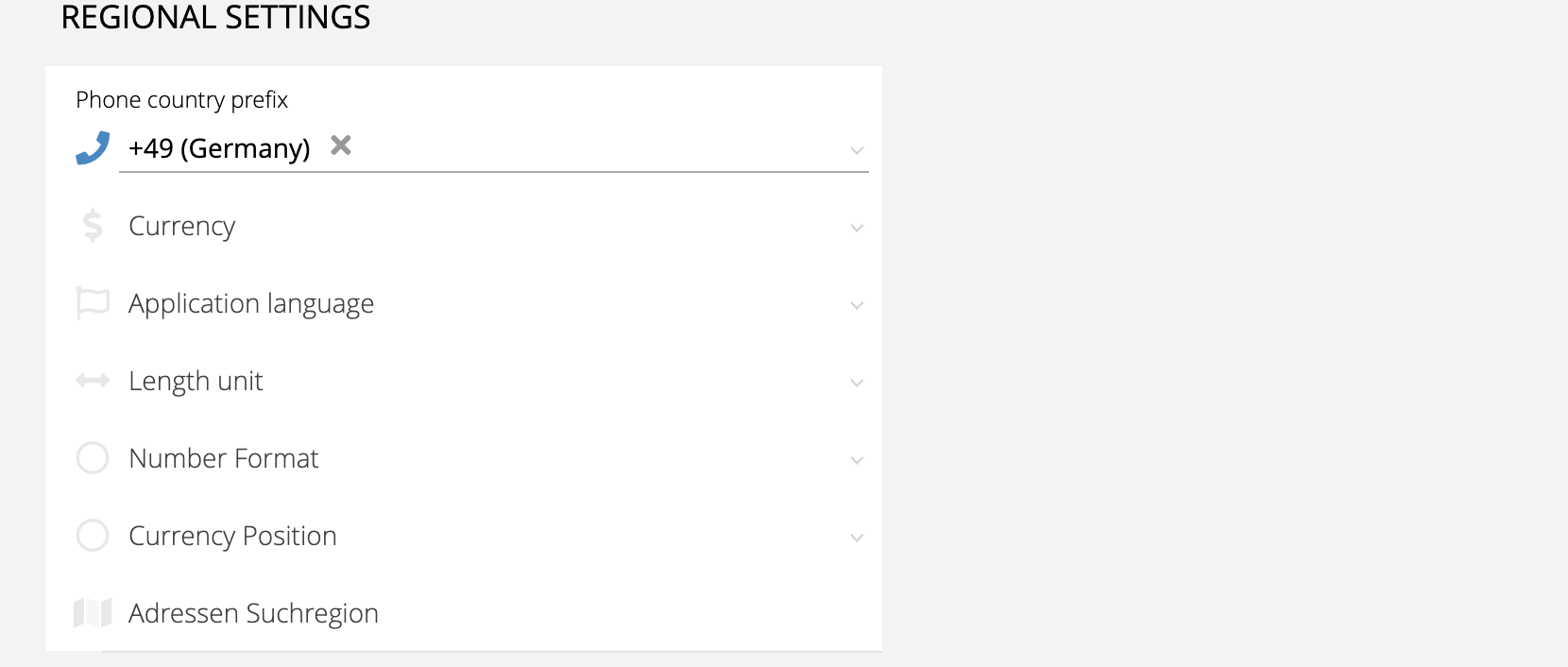

Furthermore, additional settings can be made, such as selecting the unit of length, the number format, or the currency type.
Other Settings
Under Other Settings, you can define whether the invoice date should be editable when creating an invoice. Additionally, you can set which email label should be preferred when sending emails (e.g., Home or Work).There is also an optional setting allowing you to include yourself in BCC when sending email.
Default Outgoing Email Server (SMTP)
For all settings related to the email outgoing server, please refer to the knowledge article on Setting Up the Email Mailbox & Email Synchronization.
Was this article helpful?
That’s Great!
Thank you for your feedback
Sorry! We couldn't be helpful
Thank you for your feedback
Feedback sent
We appreciate your effort and will try to fix the article